What Is a Docker Container?
The raw deal on Docker: architecture, concepts, basics, industry opinions, all the way to ninja topics like Docker Swarm and Docker Networking.
The raw deal on Docker: architecture, concepts, basics, industry opinions, all the way to ninja topics like Docker Swarm and Docker Networking.
In this article:
- What Is Docker?
- Docker Architecture and Concepts.
- Docker Images
- Running a Container from an Image
- Other Common Docker Operations
- Best Practices for Building Images
What Is Docker?
Docker is a technology that allows you to incorporate and store your code and its dependencies into a neat little package – an image. This image can then be used to spawn an instance of your application – a container. Unlike Virtual Machines (VMs), Docker containers don’t contain a hardware hypervisor.
This approach takes care of several issues:
- Docker containers start much faster than VMs
- No platform specific, IDE, or programming language restrictions.
- Small image sizes, making it easier to store and share.
- No compatibility issues relating to the dependencies/versions/setup.
- Quick and easy application deployment.
- Applications and their resources are isolated, leading to better modularity.
Docker Architecture and Concepts
To allow for an application to be self-contained the Docker approach moves up the abstraction of resources from the hardware level to the Operating System level.
To further understand Docker, let us look at its architecture. It uses a client-server model and comprises of the following components:
- Docker daemon: The daemon is responsible for all container related actions and receives commands via the CLI or the REST API.
- Docker Client: A Docker client is how users interact with Docker. The Docker client can reside on the same host as the daemon or a remote host.
- Images: The read-only template used to build containers. Images are used to store and ship applications.
- Containers: Containers are encapsulated environments in which applications are run. A container is defined by the image and configuration options.
- Docker Registries: Registries are locations from where we store and download (or “pull”) images.
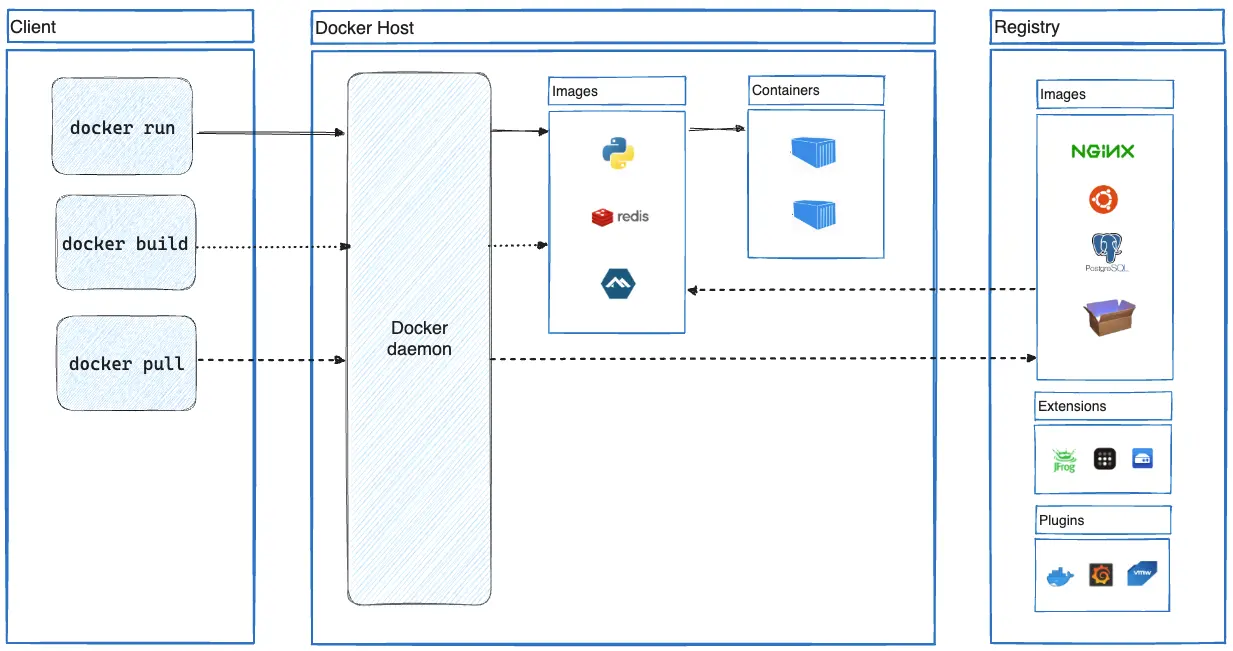
Source: Docker
Other important Docker concepts include:
- Dockerfiles — The Dockerfile is essentially the build instructions to build the Docker image. The advantage of a Dockerfile over just storing the binary image is that the automatic builds will ensure you have the latest version available. This page gathers resources about working with Dockerfiles including best practices, Dockerfile commands, how to create Docker images with a Dockerfile and more.
- Docker Hub — Docker Hub is a cloud-based repository in which Docker users and partners create, test, store and distribute container images. Through Docker Hub, a user can access public, open source image repositories, as well as use a space to create their own private repositories, automated build functions, and work groups. This page gathers resources about Docker Hub and how to push and pull container images to and from Docker Hub.
- Writable layer and volumes— It is possible to store data within the writable layer of a container. Docker offers three different ways to mount data into a container from the Docker host: volumes, bind mounts, or tmpfs volumes.
Docker Images
A Docker image is a snapshot, or template, from which new containers can be started. It’s a representation of a filesystem plus libraries for a given OS. A new image can be created by executing a set of commands contained in a Dockerfile. For example, this Dockerfile would take a base Ubuntu 16.06 image and install mongoDB, resulting in a new image:
FROM ubuntu:16.04

RUN apt-get install -y mongodb-10gen
From a physical perspective, an image is composed of a set of read-only layers. Image layers function as follows:
- Each image layer is the outcome of one command in the image’s Dockerfile—an image is then a compressed (tar) file containing the series of layers.
- Each additional image layer only includes the set of differences from the previous layer (try running docker history for a given image to list all its layers and what created them).
Running a Container from an Image
Images and containers are not the same—a container is a running instance of an image. A single image can be used to start any number of containers. Images are read-only, while containers can be modified. Also, changes to a container will be lost once it gets removed, unless changes are committed into a new image.
Follow these steps to run an image as container:
- First, note that you can run containers specifying either the image name or image ID (reference).
- Run the
docker imagescommand to view the images you have pulled locally or, alternatively, explore the Docker Hub repositories for the image you want to run the container from.
Once you know the name or ID of the image, you can start a docker container with the docker run command. For example, to download the Ubuntu 16.04 image (if not available locally yet), start a container and run a bash shell:
docker run -it ubuntu:16.04 /bin/bash
Other Common Docker Operations
Apart from docker run, here are additional common operations:
- Build a new image from a Dockerfile: The command for building an image from a Dockerfile is docker build , where you specify the location of the Dockerfile (it could be the current directory). You can (optionally) apply one or more tags to the resulting image using parameters. Use the -t option.
- List all local images: Use the docker images command to list all local images. The output includes image ID, repository, tags, and creation date.
- Tagging an existing image: You assign tags to images for clarification, so users know the version of an image they are pulling from a repository. The command to tag an image is docker tag and you need to provide the image ID and your chosen tag (including the repository). For example:
docker tag 0e5574283393 username/my_repo:1.0
- Pulling a new image from a Docker Registry: To pull an image from a registry, use docker pull and specify the repository name. By default, the latest version of the image is retrieved from the Docker Hub registry, but this behaviour can be overridden by specifying a different version and/or registry in the pull command. For example, to pull version 2.0 of my_repo from a private registry running on localhost port 5000, run:
docker pull localhost:5000/my_repo:2.0
- Pushing a local image to the Docker registry: You can push an image to Docker Hub or another registry to make it available for other users by running the docker push command. For example, to push the (latest) local version of my_repo to Docker Hub, make sure you’re logged in first by running docker login, then run:
docker push username/my_repo
- Searching for images: You can search the Docker Hub for images relating to specific terms using docker search. You can specify filters to the search, for example only list “official” repositories.
Best Practices for Building Images
The following best practices are recommended when you build images by writing Dockerfiles:
- Use a .dockerignore file to reduce image size and reduce build time by excluding files from the build context that are unnecessary for the build. The build context is the full recursive contents of the directory where the Dockerfile was when the image was built.
- Reduce image file sizes (and attack surface) while keeping Dockerfiles readable by using a multi-stage build . A multi-stage build allows you to use multiple FROM statements in a single Dockerfile and selectively copy artifacts from one stage to another, leaving behind everything you don’t want in the final image.
- Don’t install unnecessary packages when building images.
- Use multi-line commands instead of multiple RUN commands for faster builds when possible (for example, when installing a list of packages).
- Sort multi-line lists of packages into alphanumerical order to easily identify duplicates and make it easier to update and review the list.
Enable content trust when operating with a remote Docker registry so that you can only push, pull, run, or build trusted images which have been digitally signed to verify their integrity. When you use Docker with content trust, commands only operate on tagged images that have been digitally signed.